天师

天下事有难易乎?为之,则难者亦易矣;不为,则易者亦难矣。


  • 首页

  • 分类

  • 归档

  • 标签

  • 关于

官网基础

发表于 2018-01-15 分类于 笔记
本文字数: 29k 阅读时长 ≈ 26 分钟

官网基础

定义样式

要创建一组样式,请在您的项目的 res/values/ 目录中保存一个 XML 文件。 可任意指定该 XML 文件的名称,但它必须使用 .xml 扩展名,并且必须保存在 res/values/ 文件夹内。

该 XML 文件的根节点必须是 <resources>。

对于您想创建的每个样式,向该文件添加一个 <style> 元素,该元素带有对样式进行唯一标识的 name 属性(该属性为必需属性)。然后为该样式的每个属性添加一个 <item> 元素,该元素带有声明样式属性以及属性值的 name(该属性为必需属性)。 根据样式属性,<item> 的值可以是关键字字符串、十六进制颜色值、对另一资源类型的引用或其他值。以下是一个包含单个样式的示例文件:

1
2
3
4
5
6
7
8
9
<?xml version="1.0" encoding="utf-8"?>
<resources>
<style name="CodeFont" parent="@android:style/TextAppearance.Medium">
<item name="android:layout_width">fill_parent</item>
<item name="android:layout_height">wrap_content</item>
<item name="android:textColor">#00FF00</item>
<item name="android:typeface">monospace</item>
</style>
</resources>

<resources> 元素的每个子项都会在编译时转换成一个应用资源对象,该对象可由 <style> 元素的 name 属性中的值引用。 可从 XML 布局以 @style/CodeFont 形式引用该示例样式(如上文引言中所示)。

<style> 元素中的 parent 属性是可选属性,它指定应作为此样式所继承属性来源的另一样式的资源 ID。 如果愿意,您可在随后替换这些继承的样式属性。

​

Fragment
向应用栏添加项目

您的片段可以通过实现 onCreateOptionsMenu() 向 Activity 的选项菜单(并因此向应用栏)贡献菜单项。不过,为了使此方法能够收到调用,您必须在onCreate() 期间调用 setHasOptionsMenu(),以指示片段想要向选项菜单添加菜单项(否则,片段将不会收到对 onCreateOptionsMenu() 的调用)。

您之后从片段添加到选项菜单的任何菜单项都将追加到现有菜单项之后。 选定菜单项时,片段还会收到对 onOptionsItemSelected() 的回调。

您还可以通过调用 registerForContextMenu(),在片段布局中注册一个视图来提供上下文菜单。用户打开上下文菜单时,片段会收到对onCreateContextMenu() 的调用。当用户选择某个菜单项时,片段会收到对 onContextItemSelected() 的调用。

注:尽管您的片段会收到与其添加的每个菜单项对应的菜单项选定回调,但当用户选择菜单项时,Activity 会首先收到相应的回调。 如果 Activity 对菜单项选定回调的实现不会处理选定的菜单项,则系统会将事件传递到片段的回调。 这适用于选项菜单和上下文菜单。

intent
1
2
3
4
5
6
7
8
9
10
11
12
13
14
15
16
17
18
19
//验证是否存在接收intent的应用
PackageManager packageManager = getPackageManager();
List activities = packageManager.queryIntentActivities(intent,
PackageManager.MATCH_DEFAULT_ONLY);
boolean isIntentSafe = activities.size() > 0;
//添加意图选择
Intent intent = new Intent(Intent.ACTION_SEND);
...

// Always use string resources for UI text.
// This says something like "Share this photo with"
String title = getResources().getString(R.string.chooser_title);
// Create intent to show chooser
Intent chooser = Intent.createChooser(intent, title);

// Verify the intent will resolve to at least one activity
if (intent.resolveActivity(getPackageManager()) != null) {
startActivity(chooser);
}
1
2
3
4
5
6
7
8
9
10
11
12
13
14
15
16
17
18
19
20
21
22
23
24
25
26
27
28
<!--隐式启动-->
<activity android:name="ShareActivity">
<!-- filter for sending text; accepts SENDTO action with sms URI schemes -->
<intent-filter>
<action android:name="android.intent.action.SENDTO"/>
<category android:name="android.intent.category.DEFAULT"/>
<data android:scheme="sms" />
<data android:scheme="smsto" />
</intent-filter>
<!-- filter for sending text or images; accepts SEND action and text or image data -->
<intent-filter>
<action android:name="android.intent.action.SEND"/>
<category android:name="android.intent.category.DEFAULT"/>
<data android:mimeType="image/*"/>
<data android:mimeType="text/plain"/>
</intent-filter>
</activity>

// Get the intent that started this activity

Intent intent = getIntent();
Uri data = intent.getData();
// Figure out what to do based on the intent type
if (intent.getType().indexOf("image/") != -1) {
// Handle intents with image data ...
} else if (intent.getType().equals("text/plain")) {
// Handle intents with text ...
}
危险权限申请
1
2
3
4
5
6
7
8
9
10
11
12
13
14
15
16
17
18
19
20
21
22
23
24
25
26
27
28
29
30
31
32
33
34
35
36
37
38
39
40
41
42
43
44
45
46
47
48
49
50
51
52
// Here, thisActivity is the current activity
if (ContextCompat.checkSelfPermission(thisActivity,
Manifest.permission.READ_CONTACTS)
!= PackageManager.PERMISSION_GRANTED) {

// Should we show an explanation?
if (ActivityCompat.shouldShowRequestPermissionRationale(thisActivity,
Manifest.permission.READ_CONTACTS)) {

// Show an expanation to the user *asynchronously* -- don't block
// this thread waiting for the user's response! After the user
// sees the explanation, try again to request the permission.

} else {

// No explanation needed, we can request the permission.

ActivityCompat.requestPermissions(thisActivity,
new String[]{Manifest.permission.READ_CONTACTS},
MY_PERMISSIONS_REQUEST_READ_CONTACTS);

// MY_PERMISSIONS_REQUEST_READ_CONTACTS is an
// app-defined int constant. The callback method gets the
// result of the request.
}
}

//处理回调
@Override
public void onRequestPermissionsResult(int requestCode,
String permissions[], int[] grantResults) {
switch (requestCode) {
case MY_PERMISSIONS_REQUEST_READ_CONTACTS: {
// If request is cancelled, the result arrays are empty.
if (grantResults.length > 0
&& grantResults[0] == PackageManager.PERMISSION_GRANTED) {

// permission was granted, yay! Do the
// contacts-related task you need to do.

} else {

// permission denied, boo! Disable the
// functionality that depends on this permission.
}
return;
}

// other 'case' lines to check for other
// permissions this app might request
}
}
文件IO
1
2
3
4
5
6
7
8
9
10
11
12
13
14
15
16
17
18
19
20
21
22
23
24
25
26
27
28
29
30
31
32
33
34
35
36
37
38
39
40
//基础写
String filename = "myfile";
String string = "Hello world!";
FileOutputStream outputStream;

try {
outputStream = openFileOutput(filename, Context.MODE_PRIVATE);
outputStream.write(string.getBytes());
outputStream.close();
} catch (Exception e) {
e.printStackTrace();
}
//临时文件
String fileName = Uri.parse(url).getLastPathSegment();
file = File.createTempFile(fileName, null, context.getCacheDir());

//判断外部存储是否装载
public boolean isExternalStorageWritable() {
String state = Environment.getExternalStorageState();
if (Environment.MEDIA_MOUNTED.equals(state)) {
return true;
}
return false;
}

//判断外部存储是否可读
public boolean isExternalStorageReadable() {
String state = Environment.getExternalStorageState();
if (Environment.MEDIA_MOUNTED.equals(state) ||
Environment.MEDIA_MOUNTED_READ_ONLY.equals(state)) {
return true;
}
return false;
}
// 指定文件外部存储目录,可以传null.
File file = new File(context.getExternalFilesDir(
Environment.DIRECTORY_PICTURES), albumName);
//查询存储使用信息
getCacheDir().getFreeSpace()
getCacheDir().getTotalSpace()
room数据库的使用:
1
2
3
4
5
6
7
8
9
10
11
12
13
14
15
16
17
18
19
20
21
22
23
24
25
26
27
28
29
30
31
32
33
34
35
36
37
38
39
40
41
42
43
44
45
46
47
48
49
50
51
52
53
54
55
56
57
58
59
60
61
62
63
64
65
66
67
68
69
70
71
72
73
74
75
76
77
78
79
80
81
82
//By default, Room creates a column for each field that's defined in the entity. 
//If an entity has fields that you don't want to persist, you can annotate them using @Ignore.
//You must reference the entity class through the entities array in the Database class.
@Entity
class User {
@PrimaryKey
public int id;

public String firstName;
public String lastName;

@Ignore
Bitmap picture;
}

//复合型主键
@Entity(primaryKeys = {"firstName", "lastName"})
class User {
public String firstName;
public String lastName;

@Ignore
Bitmap picture;
}
//表重命名,否则就是以类名作为表的名字 (注意:表名不区分大小写)
@Entity(primaryKeys = {"firstName", "lastName"})
class User {
public String firstName;
public String lastName;

@Ignore
Bitmap picture;
}

//columnInfo 作用与tableName相似,声明的字段会作为表的列明,通过@columnInfo可修改列名
@Entity(tableName = "users")
class User {
@PrimaryKey
public int id;

@ColumnInfo(name = "first_name")
public String firstName;

@ColumnInfo(name = "last_name")
public String lastName;

@Ignore
Bitmap picture;
}
//定义对象之间的关系()
@Entity(foreignKeys = @ForeignKey(entity = User.class,
parentColumns = "id",
childColumns = "user_id"))
class Book {
@PrimaryKey
public int bookId;

public String title;

@ColumnInfo(name = "user_id")
public int userId;
}
//使用注解@Embedded创建嵌套对象 (User表中包含Address的street,state,city,post_code)
class Address {
public String street;
public String state;
public String city;

@ColumnInfo(name = "post_code")
public int postCode;
}

@Entity
class User {
@PrimaryKey
public int id;

public String firstName;

@Embedded
public Address address;
}
相机
要求相关硬件
1
2
3
4
5
<manifest ... >
<uses-feature android:name="android.hardware.camera"
android:required="true" />
...
</manifest>
简单拍照/获取缩略图
1
2
3
4
5
6
7
8
9
10
11
12
13
14
15
16
17
18
static final int REQUEST_IMAGE_CAPTURE = 1;
//拍照
private void dispatchTakePictureIntent() {
Intent takePictureIntent = new Intent(MediaStore.ACTION_IMAGE_CAPTURE);
if (takePictureIntent.resolveActivity(getPackageManager()) != null) {
startActivityForResult(takePictureIntent, REQUEST_IMAGE_CAPTURE);
}
}

//获取缩略图
@Override
protected void onActivityResult(int requestCode, int resultCode, Intent data) {
if (requestCode == REQUEST_IMAGE_CAPTURE && resultCode == RESULT_OK) {
Bundle extras = data.getExtras();
Bitmap imageBitmap = (Bitmap) extras.get("data");
mImageView.setImageBitmap(imageBitmap);
}
}
获取唯一文件
1
2
3
4
5
6
7
8
9
10
11
12
13
14
15
16
17
String mCurrentPhotoPath;

private File createImageFile() throws IOException {
// Create an image file name
String timeStamp = new SimpleDateFormat("yyyyMMdd_HHmmss").format(new Date());
String imageFileName = "JPEG_" + timeStamp + "_";
File storageDir = getExternalFilesDir(Environment.DIRECTORY_PICTURES);
File image = File.createTempFile(
imageFileName, /* prefix */
".jpg", /* suffix */
storageDir /* directory */
);

// Save a file: path for use with ACTION_VIEW intents
mCurrentPhotoPath = image.getAbsolutePath();
return image;
}
拍照/原图
1
2
3
4
5
6
7
8
9
10
11
12
13
14
15
16
17
18
19
20
21
22
23
24
static final int REQUEST_TAKE_PHOTO = 1;

private void dispatchTakePictureIntent() {
Intent takePictureIntent = new Intent(MediaStore.ACTION_IMAGE_CAPTURE);
// Ensure that there's a camera activity to handle the intent
if (takePictureIntent.resolveActivity(getPackageManager()) != null) {
// Create the File where the photo should go
File photoFile = null;
try {
photoFile = createImageFile();
} catch (IOException ex) {
// Error occurred while creating the File
...
}
// Continue only if the File was successfully created
if (photoFile != null) {
Uri photoURI = FileProvider.getUriForFile(this,
"com.example.android.fileprovider",
photoFile);
takePictureIntent.putExtra(MediaStore.EXTRA_OUTPUT, photoURI);
startActivityForResult(takePictureIntent, REQUEST_TAKE_PHOTO);
}
}
}
通知图库更新
1
2
3
4
5
6
7
8
//可以让其他应用访问
private void galleryAddPic() {
Intent mediaScanIntent = new Intent(Intent.ACTION_MEDIA_SCANNER_SCAN_FILE);
File f = new File(mCurrentPhotoPath);
Uri contentUri = Uri.fromFile(f);
mediaScanIntent.setData(contentUri);
this.sendBroadcast(mediaScanIntent);
}
尺寸压缩
1
2
3
4
5
6
7
8
9
10
11
12
13
14
15
16
17
18
19
20
21
22
23
private void setPic() {
// Get the dimensions of the View
int targetW = mImageView.getWidth();
int targetH = mImageView.getHeight();

// Get the dimensions of the bitmap
BitmapFactory.Options bmOptions = new BitmapFactory.Options();
bmOptions.inJustDecodeBounds = true;
BitmapFactory.decodeFile(mCurrentPhotoPath, bmOptions);
int photoW = bmOptions.outWidth;
int photoH = bmOptions.outHeight;

// Determine how much to scale down the image
int scaleFactor = Math.min(photoW/targetW, photoH/targetH);

// Decode the image file into a Bitmap sized to fill the View
bmOptions.inJustDecodeBounds = false;
bmOptions.inSampleSize = scaleFactor;
bmOptions.inPurgeable = true;

Bitmap bitmap = BitmapFactory.decodeFile(mCurrentPhotoPath, bmOptions);
mImageView.setImageBitmap(bitmap);
}
调用相机录制视频
1
2
3
4
5
6
7
8
9
10
11
12
13
14
15
16
17
18
//添加 <uses-feature android:name="android.hardware.camera" android:required="true" />
static final int REQUEST_VIDEO_CAPTURE = 1;

private void dispatchTakeVideoIntent() {
Intent takeVideoIntent = new Intent(MediaStore.ACTION_VIDEO_CAPTURE);
if (takeVideoIntent.resolveActivity(getPackageManager()) != null) {
startActivityForResult(takeVideoIntent, REQUEST_VIDEO_CAPTURE);
}
}

//通过使用videoView播放
@Override
protected void onActivityResult(int requestCode, int resultCode, Intent intent) {
if (requestCode == REQUEST_VIDEO_CAPTURE && resultCode == RESULT_OK) {
Uri videoUri = intent.getData();
mVideoView.setVideoURI(videoUri);
}
}
Sence
布局生成Sence
1
2
3
4
5
6
7
8
9
10
Scene mAScene;
Scene mAnotherScene;

// Create the scene root for the scenes in this app
mSceneRoot = (ViewGroup) findViewById(R.id.scene_root);

// Create the scenes
mAScene = Scene.getSceneForLayout(mSceneRoot, R.layout.a_scene, this);
mAnotherScene =
Scene.getSceneForLayout(mSceneRoot, R.layout.another_scene, this);
代码创建Sence
1
2
3
4
5
6
7
8
9
10
11
Scene mScene;

// Obtain the scene root element
mSceneRoot = (ViewGroup) mSomeLayoutElement;

// Obtain the view hierarchy to add as a child of
// the scene root when this scene is entered
mViewHierarchy = (ViewGroup) someOtherLayoutElement;

// Create a scene
mScene = new Scene(mSceneRoot, mViewHierarchy);
Transition的创建
1
2
3
4
5
6
7
8
9
10
//通过布局的方式创建
//res/transition/fade_transition.xml
<fade xmlns:android="http://schemas.android.com/apk/res/android" />

Transition mFadeTransition =
TransitionInflater.from(this).
inflateTransition(R.transition.fade_transition);

//通过代码的方式创建Transition [AutoTransition,Fade,ChangeBounds]
Transition mFadeTransition = new Fade();
Transition应用有场景的转换
1
2
//通常用于不同的视图切换
TransitionManager.go(mEndingScene, mFadeTransition);
Transition应用无场景的转换(TransitionManager.beginDelayedTransition(rootview,flag) 用于记录视图层次结构)
1
2
3
4
5
6
7
8
9
10
11
12
// Get the root view and create a transition
mRootView = (ViewGroup) findViewById(R.id.mainLayout);
mFade = new Fade(IN);

// Start recording changes to the view hierarchy
TransitionManager.beginDelayedTransition(mRootView, mFade);

// Add the new TextView to the view hierarchy
mRootView.addView(mLabelText);

// When the system redraws the screen to show this update,
// the framework will animate the addition as a fade in
PageTransformer

缩放效果(https://developer.android.google.cn/training/animation/anim_page_transformer_zoomout.mp4)

1
2
3
4
5
6
7
8
9
10
11
12
13
14
15
16
17
18
19
20
21
22
23
24
25
26
27
28
29
30
31
32
33
34
35
36
37
38
public class ZoomOutPageTransformer implements ViewPager.PageTransformer {
private static final float MIN_SCALE = 0.85f;
private static final float MIN_ALPHA = 0.5f;

public void transformPage(View view, float position) {
int pageWidth = view.getWidth();
int pageHeight = view.getHeight();

if (position < -1) { // [-Infinity,-1)
// This page is way off-screen to the left.
view.setAlpha(0);

} else if (position <= 1) { // [-1,1]
// Modify the default slide transition to shrink the page as well
float scaleFactor = Math.max(MIN_SCALE, 1 - Math.abs(position));
float vertMargin = pageHeight * (1 - scaleFactor) / 2;
float horzMargin = pageWidth * (1 - scaleFactor) / 2;
if (position < 0) {
view.setTranslationX(horzMargin - vertMargin / 2);
} else {
view.setTranslationX(-horzMargin + vertMargin / 2);
}

// Scale the page down (between MIN_SCALE and 1)
view.setScaleX(scaleFactor);
view.setScaleY(scaleFactor);

// Fade the page relative to its size.
view.setAlpha(MIN_ALPHA +
(scaleFactor - MIN_SCALE) /
(1 - MIN_SCALE) * (1 - MIN_ALPHA));

} else { // (1,+Infinity]
// This page is way off-screen to the right.
view.setAlpha(0);
}
}
}

透明效果(https://developer.android.google.cn/training/animation/anim_page_transformer_depth.mp4)

1
2
3
4
5
6
7
8
9
10
11
12
13
14
15
16
17
18
19
20
21
22
23
24
25
26
27
28
29
30
31
32
33
34
35
36
public class DepthPageTransformer implements ViewPager.PageTransformer {
private static final float MIN_SCALE = 0.75f;

public void transformPage(View view, float position) {
int pageWidth = view.getWidth();

if (position < -1) { // [-Infinity,-1)
// This page is way off-screen to the left.
view.setAlpha(0);

} else if (position <= 0) { // [-1,0]
// Use the default slide transition when moving to the left page
view.setAlpha(1);
view.setTranslationX(0);
view.setScaleX(1);
view.setScaleY(1);

} else if (position <= 1) { // (0,1]
// Fade the page out.
view.setAlpha(1 - position);

// Counteract the default slide transition
view.setTranslationX(pageWidth * -position);

// Scale the page down (between MIN_SCALE and 1)
float scaleFactor = MIN_SCALE
+ (1 - MIN_SCALE) * (1 - Math.abs(position));
view.setScaleX(scaleFactor);
view.setScaleY(scaleFactor);

} else { // (1,+Infinity]
// This page is way off-screen to the right.
view.setAlpha(0);
}
}
}
查看大图(https://developer.android.google.cn/training/animation/anim_zoom.mp4)
1
2
3
4
5
6
7
8
9
10
11
12
13
14
15
16
17
18
19
20
21
22
23
24
25
26
27
28
29
30
31
32
33
34
35
36
37
38
39
40
41
42
43
44
45
46
47
48
49
50
51
52
53
54
55
56
57
58
59
60
61
62
63
64
65
66
67
68
69
70
71
72
73
74
75
76
77
78
79
80
81
82
83
84
85
86
87
88
89
90
91
92
93
94
95
96
97
98
99
100
101
102
103
104
105
106
107
108
109
110
111
112
113
114
115
116
117
118
119
120
121
122
123
124
125
126
127
128
129
130
131
132
133
134
135
136
137
private void zoomImageFromThumb(final View thumbView, int imageResId) {
// If there's an animation in progress, cancel it
// immediately and proceed with this one.
if (mCurrentAnimator != null) {
mCurrentAnimator.cancel();
}

// Load the high-resolution "zoomed-in" image.
final ImageView expandedImageView = (ImageView) findViewById(
R.id.expanded_image);
expandedImageView.setImageResource(imageResId);

// Calculate the starting and ending bounds for the zoomed-in image.
// This step involves lots of math. Yay, math.
final Rect startBounds = new Rect();
final Rect finalBounds = new Rect();
final Point globalOffset = new Point();

// The start bounds are the global visible rectangle of the thumbnail,
// and the final bounds are the global visible rectangle of the container
// view. Also set the container view's offset as the origin for the
// bounds, since that's the origin for the positioning animation
// properties (X, Y).
thumbView.getGlobalVisibleRect(startBounds);
findViewById(R.id.container)
.getGlobalVisibleRect(finalBounds, globalOffset);
startBounds.offset(-globalOffset.x, -globalOffset.y);
finalBounds.offset(-globalOffset.x, -globalOffset.y);

// Adjust the start bounds to be the same aspect ratio as the final
// bounds using the "center crop" technique. This prevents undesirable
// stretching during the animation. Also calculate the start scaling
// factor (the end scaling factor is always 1.0).
float startScale;
if ((float) finalBounds.width() / finalBounds.height()
> (float) startBounds.width() / startBounds.height()) {
// Extend start bounds horizontally
startScale = (float) startBounds.height() / finalBounds.height();
float startWidth = startScale * finalBounds.width();
float deltaWidth = (startWidth - startBounds.width()) / 2;
startBounds.left -= deltaWidth;
startBounds.right += deltaWidth;
} else {
// Extend start bounds vertically
startScale = (float) startBounds.width() / finalBounds.width();
float startHeight = startScale * finalBounds.height();
float deltaHeight = (startHeight - startBounds.height()) / 2;
startBounds.top -= deltaHeight;
startBounds.bottom += deltaHeight;
}

// Hide the thumbnail and show the zoomed-in view. When the animation
// begins, it will position the zoomed-in view in the place of the
// thumbnail.
thumbView.setAlpha(0f);
expandedImageView.setVisibility(View.VISIBLE);

// Set the pivot point for SCALE_X and SCALE_Y transformations
// to the top-left corner of the zoomed-in view (the default
// is the center of the view).
expandedImageView.setPivotX(0f);
expandedImageView.setPivotY(0f);

// Construct and run the parallel animation of the four translation and
// scale properties (X, Y, SCALE_X, and SCALE_Y).
AnimatorSet set = new AnimatorSet();
set
.play(ObjectAnimator.ofFloat(expandedImageView, View.X,
startBounds.left, finalBounds.left))
.with(ObjectAnimator.ofFloat(expandedImageView, View.Y,
startBounds.top, finalBounds.top))
.with(ObjectAnimator.ofFloat(expandedImageView, View.SCALE_X,
startScale, 1f)).with(ObjectAnimator.ofFloat(expandedImageView,
View.SCALE_Y, startScale, 1f));
set.setDuration(mShortAnimationDuration);
set.setInterpolator(new DecelerateInterpolator());
set.addListener(new AnimatorListenerAdapter() {
@Override
public void onAnimationEnd(Animator animation) {
mCurrentAnimator = null;
}

@Override
public void onAnimationCancel(Animator animation) {
mCurrentAnimator = null;
}
});
set.start();
mCurrentAnimator = set;

// Upon clicking the zoomed-in image, it should zoom back down
// to the original bounds and show the thumbnail instead of
// the expanded image.
final float startScaleFinal = startScale;
expandedImageView.setOnClickListener(new View.OnClickListener() {
@Override
public void onClick(View view) {
if (mCurrentAnimator != null) {
mCurrentAnimator.cancel();
}

// Animate the four positioning/sizing properties in parallel,
// back to their original values.
AnimatorSet set = new AnimatorSet();
set.play(ObjectAnimator
.ofFloat(expandedImageView, View.X, startBounds.left))
.with(ObjectAnimator
.ofFloat(expandedImageView,
View.Y,startBounds.top))
.with(ObjectAnimator
.ofFloat(expandedImageView,
View.SCALE_X, startScaleFinal))
.with(ObjectAnimator
.ofFloat(expandedImageView,
View.SCALE_Y, startScaleFinal));
set.setDuration(mShortAnimationDuration);
set.setInterpolator(new DecelerateInterpolator());
set.addListener(new AnimatorListenerAdapter() {
@Override
public void onAnimationEnd(Animator animation) {
thumbView.setAlpha(1f);
expandedImageView.setVisibility(View.GONE);
mCurrentAnimator = null;
}

@Override
public void onAnimationCancel(Animator animation) {
thumbView.setAlpha(1f);
expandedImageView.setVisibility(View.GONE);
mCurrentAnimator = null;
}
});
set.start();
mCurrentAnimator = set;
}
});
}
更改布局动画(添加、删除、更新)
1
2
3
4
5
<!--在相应的布局中添加animateLayoutChanges = true-->
<LinearLayout android:id="@+id/container"
android:animateLayoutChanges="true"
...
/>
尺寸限定符:

res/layout/main.xml,单窗格(默认)布局:

res/layout-large/main.xml,双窗格布局:

res/layout-sw600dp/main.xml,双窗格布局:(最小宽度大于或等于 600dp 的设备将选择 layout-sw600dp/main.xml)

NinePatch(.9图制作详情)

边框沿线的黑色像素。顶部和左侧边框上的黑色像素指示可以拉伸图像的位置,右侧和底部边框上的黑色像素则指示应该放置内容的位置。

DP

  • xhdpi:2.0
  • hdpi:1.5
  • mdpi:1.0(基准)
  • ldpi:0.75
ConstraintLayout

官网有详细介绍 https://developer.android.google.cn/training/constraint-layout/index.html

  • Toolbar
    1
    2
    3
    4
    5
    6
    7
    8
    <android.support.v7.widget.Toolbar
    android:id="@+id/my_toolbar"
    android:layout_width="match_parent"
    android:layout_height="?attr/actionBarSize"
    android:background="?attr/colorPrimary"
    android:elevation="4dp" 官方推荐
    android:theme="@style/ThemeOverlay.AppCompat.ActionBar"
    app:popupTheme="@style/ThemeOverlay.AppCompat.Light"/>
  • SearchView

    可以作为menu使用,也可以作为一个控件使用

    1
    2
    3
    4
    5
    <item android:id="@+id/action_search"
    android:title="@string/action_search"
    android:icon="@drawable/ic_search"
    app:showAsAction="ifRoom|collapseActionView"
    app:actionViewClass="android.support.v7.widget.SearchView" />
    1
    2
    3
    4
    5
    6
    7
    8
    9
    10
    11
    12
    13
    14
    15
    16
    17
    @Override
    public boolean onCreateOptionsMenu(Menu menu) {
    getMenuInflater().inflate(R.menu.main_activity_actions, menu);

    MenuItem searchItem = menu.findItem(R.id.action_search);
    SearchView searchView =
    (SearchView) MenuItemCompat.getActionView(searchItem);

    // Configure the search info and add any event listeners...

    return super.onCreateOptionsMenu(menu);
    }

    //可以自定义各种状态下的icon
    actionView.setOnCloseListener();//监听打开关闭
    actionView.setOnSuggestionListener();//推荐列表
    actionView.setOnQueryTextListener()//类似文本间监听 返回false自动收起键盘
  • snackbar
    1
    2
    3
    4
    Snackbar mySnackbar = Snackbar.make(findViewById(R.id.myCoordinatorLayout),
    R.string.email_archived,Snackbar.LENGTH_SHORT);
    mySnackbar.setAction(R.string.undo_string, new MyUndoListener());
    mySnackbar.show();
  • 管理系统界面
    1
    2
    3
    4
    5
    6
    7
    8
    9
    // This example uses decor view, but you can use any visible view.
    View decorView = getActivity().getWindow().getDecorView();
    int uiOptions = View.SYSTEM_UI_FLAG_LOW_PROFILE;
    decorView.setSystemUiVisibility(uiOptions);

    View decorView = getActivity().getWindow().getDecorView();
    // Calling setSystemUiVisibility() with a value of 0 clears
    // all flags.
    decorView.setSystemUiVisibility(0);
  • 隐藏状态栏

    当失去焦点时会无效,比如触摸其他,后台重新进入界面

    1
    2
    3
    4
    5
    6
    7
    8
    9
    10
    11
    12
    13
    14
    15
    16
    17
    18
    19
    20
    21
    22
    23
    24
    25
    26
    27
    28
    29
    30
    31
    32
    33
    34
    35
    36
    37
    38
    39
    40
    View decorView = getWindow().getDecorView();
    // Hide the status bar.
    int uiOptions = View.SYSTEM_UI_FLAG_FULLSCREEN;
    decorView.setSystemUiVisibility(uiOptions);
    // Remember that you should never show the action bar if the
    // status bar is hidden, so hide that too if necessary.
    ActionBar actionBar = getActionBar();
    actionBar.hide();

    //配合setFitsSystemWindows()
    View.SYSTEM_UI_FLAG_FULLSCREEN | //隐藏状态栏
    View.SYSTEM_UI_FLAG_LAYOUT_FULLSCREEN| //内容填充状态栏
    View.SYSTEM_UI_FLAG_LAYOUT_STABLE| //保持布局稳定
    View.SYSTEM_UI_FLAG_HIDE_NAVIGATION|//隐藏导航虚拟按键
    View.SYSTEM_UI_FLAG_LAYOUT_HIDE_NAVIGATION|//内容填充导航虚拟按键
    View.SYSTEM_UI_FLAG_IMMERSIVE|//沉浸式全屏
    View.SYSTEM_UI_FLAG_IMMERSIVE_STICKY//沉浸式全屏 划出状态栏,状态栏会自动消失

    //处理状态栏被显示的问题
    getWindow().getDecorView().setOnSystemUiVisibilityChangeListener
    onWindowFocusChanged()

    mDecorView.setOnSystemUiVisibilityChangeListener(new View.OnSystemUiVisibilityChangeListener() {
    @Override
    public void onSystemUiVisibilityChange(int visibility) {
    // Note that system bars will only be "visible" if none of the
    // LOW_PROFILE, HIDE_NAVIGATION, or FULLSCREEN flags are set.
    if ((visibility & View.SYSTEM_UI_FLAG_FULLSCREEN) == 0) {
    // TODO: The system bars are visible. Make any desired
    // adjustments to your UI, such as showing the action bar or
    // other navigational controls.

    } else {
    // TODO: The system bars are NOT visible. Make any desired
    // adjustments to your UI, such as hiding the action bar or
    // other navigational controls.

    }
    }
    });
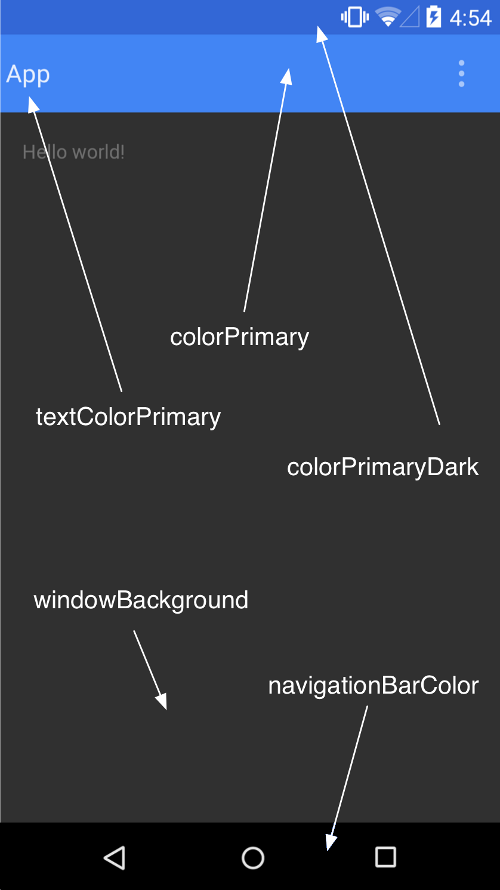
  • Material Design

    定制状态栏

    状态栏

    1
    2
    //当recycleview宽高不变时增删改查时提高性能
    mRecyclerView.setHasFixedSize(true);

    阴影

    1
    2
    3
    4
    5
    Z = elevation + translationZ
    //自定义阴影轮廓,因为实际轮廓都是正方形
    扩展 ViewOutlineProvider 类别。
    替代 getOutline() 方法。
    利用 View.setOutlineProvider() 方法向您的视图指定新的轮廓提供程序。
  • 定制动画
    触摸反馈(水波纹)
    1
    2
    3
    4
    5
    //矩形边框水波纹
    android:background="?android:attr/selectableItemBackground"

    //无边框限制水波纹
    android:background="?android:attr/selectableItemBackgroundBorderless"
    自定义水波纹
    1
    2
    3
    4
    5
    6
    7
    8
    9
    10
    11
    12
    13
    14
    15
    16
    17
    18
    19
    /**
    * Creates a new ripple drawable with the specified ripple color and
    * optional content and mask drawables.
    * 通过指定波纹的颜色、操作内容、蒙板边界 创建新的ripple drawable 。
    * @param color The ripple color 波纹颜色
    * @param content The content drawable, may be {@code null} 指定content drawable
    * @param mask The mask drawable, may be {@code null} 蒙板边界 、为null时,无边界
    */
    public RippleDrawable(@NonNull ColorStateList color, @Nullable Drawable content,
    @Nullable Drawable mask) {
    ...
    }
    RippleDrawable rd = new RippleDrawable(
    ColorStateList.valueOf(
    getResources().getColor(R.color.bg_gray)),
    drawable,
    getShape()
    );
    tvColor.setBackgroundDrawable(rd);
    揭露动画
    1
    2
    3
    // create the animator for this view (the start radius is zero)
    Animator anim =
    ViewAnimationUtils.createCircularReveal(myView, cx, cy, 0, finalRadius);

    ​

# 笔记 # 官网基础
动画
反射笔记
  • 文章目录
  • 站点概览
欢亮

欢亮

天下事有难易乎?为之,则难者亦易矣;不为,则易者亦难矣。
9 日志
6 分类
10 标签
GitHub E-Mail
Links
  • 二松同学
  1. 1. 官网基础
    1. 1.0.0.1. 定义样式
    2. 1.0.0.2. Fragment
      1. 1.0.0.2.1. 向应用栏添加项目
    3. 1.0.0.3. intent
    4. 1.0.0.4. 危险权限申请
    5. 1.0.0.5. 文件IO
    6. 1.0.0.6. room数据库的使用:
    7. 1.0.0.7. 相机
      1. 1.0.0.7.1. 要求相关硬件
      2. 1.0.0.7.2. 简单拍照/获取缩略图
      3. 1.0.0.7.3. 获取唯一文件
      4. 1.0.0.7.4. 拍照/原图
      5. 1.0.0.7.5. 通知图库更新
      6. 1.0.0.7.6. 尺寸压缩
      7. 1.0.0.7.7. 调用相机录制视频
    8. 1.0.0.8. Sence
      1. 1.0.0.8.1. 布局生成Sence
      2. 1.0.0.8.2. 代码创建Sence
      3. 1.0.0.8.3. Transition的创建
      4. 1.0.0.8.4. Transition应用有场景的转换
      5. 1.0.0.8.5. Transition应用无场景的转换(TransitionManager.beginDelayedTransition(rootview,flag) 用于记录视图层次结构)
    9. 1.0.0.9. PageTransformer
    10. 1.0.0.10. 查看大图(https://developer.android.google.cn/training/animation/anim_zoom.mp4)
    11. 1.0.0.11. 更改布局动画(添加、删除、更新)
    12. 1.0.0.12. 尺寸限定符:
    13. 1.0.0.13. ConstraintLayout
      1. 1.0.0.13.1. Toolbar
      2. 1.0.0.13.2. SearchView
      3. 1.0.0.13.3. snackbar
    14. 1.0.0.14. 管理系统界面
      1. 1.0.0.14.1. 隐藏状态栏
    15. 1.0.0.15. Material Design
    16. 1.0.0.16. 定制动画
      1. 1.0.0.16.1. 触摸反馈(水波纹)
      2. 1.0.0.16.2. 自定义水波纹
      3. 1.0.0.16.3. 揭露动画
© 2019 欢亮 | 121k | 1:50
由 Hexo 强力驱动 v3.9.0
|
主题 – NexT.Muse v7.3.0